Cost tracking summary
- Start simpleYour goal is to start with simple purchase or production costs for each product (your COGS), find your payment processing fee and pull together your average returns rate.
- Refine your returnsIn time you can refine your returns rate by product category, brand, type or even on a product by product basis.
- Add restocking and customer serviceMake plans to calculate your restocking and customer service fees. You can choose to allocate some or all of these to each product you sell, for example a £2 levy on each sale.
- Add your workforce costsIf you want full accountability for your entire operation, look at your workforce charges. But remember, if your workforce handles sales from other channels, for fairness you should only apply the percentage your web orders take up. For example, if your workforce costs £50k per month but only 20% of sales are from web, then your workforce fee should be £10k.
Putting it all together
Try to maintain a simple spreadsheet of your costs. In your spreadsheet, list all of your SKUs and product information, then have a column for each of these figures:
| Column | What goes in it |
|---|---|
| Purchase price | What you pay to buy or produce one unit |
| Selling price | What the customer pays |
| VAT / tax | The tax rate included in the selling price, e.g. 20% |
| Shipping cost | What delivery costs you per order |
| Shipping subsidy | The part of delivery you pay for that the customer does not |
| Payment fee percentage | e.g. 1.5% |
| Payment fee fixed | e.g. 20p |
| Returns rate | The percentage of orders returned |
| Restocking fee | Return shipping plus handling |
| Import duty | Per unit, if not already in your purchase price |
| Handling fee | Picking and packing each order |
| Customer service fee | Support cost per order |
| Other fees | Your levy for wider running costs |
Resources
Download a CSV template to track costsGROW solution
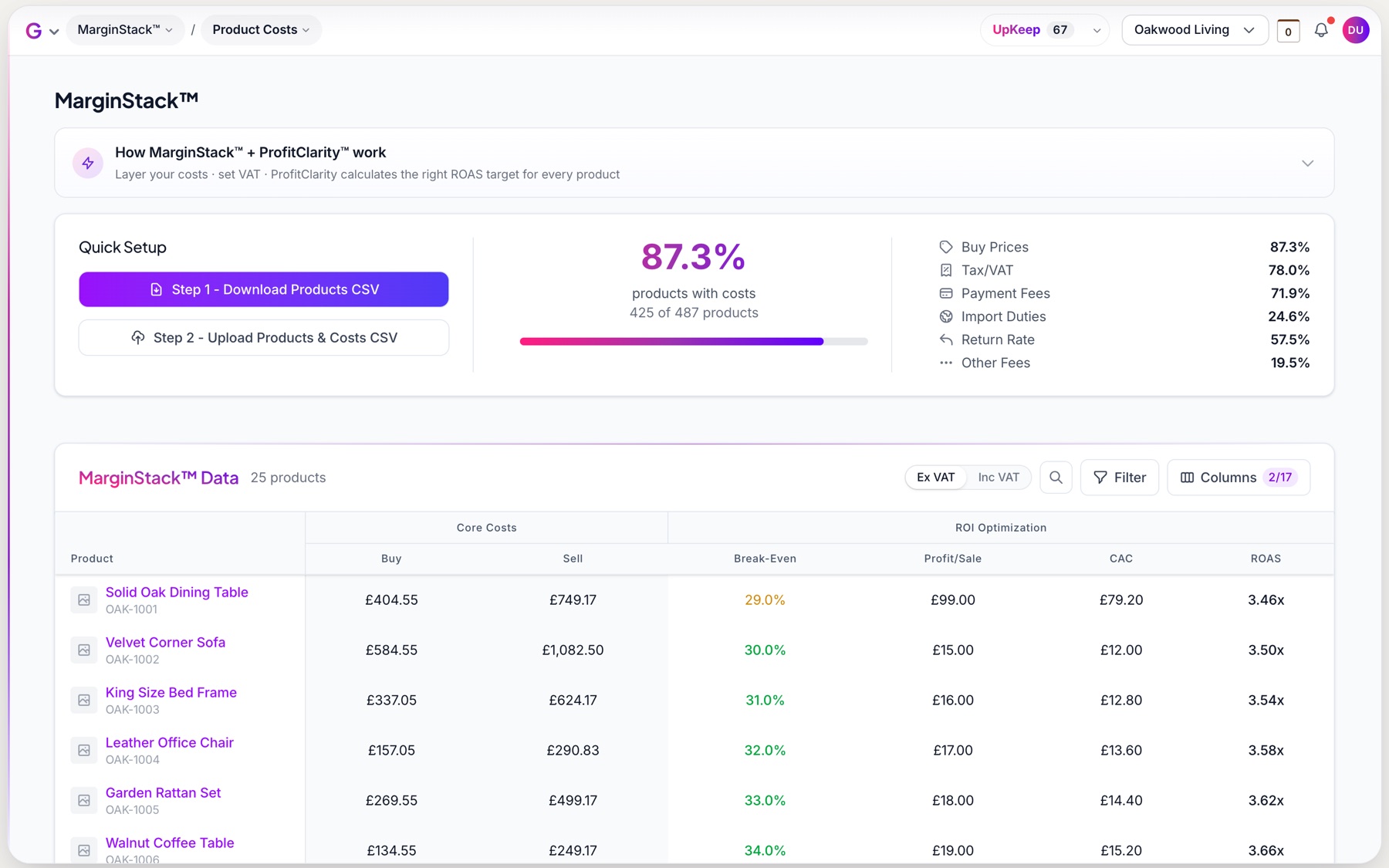
We provide an automated solution to centralise and track all of your cost data. We call this MarginStackTM.
- After you sync your product data down from Google Merchant Center, you can download a CSV of all products with all of the columns required for each cost. Simply fill in this CSV and upload it back to the platform.
- You can also create and update a Google Sheet and sync it back into the platform.
- Alternatively, you can use a custom spreadsheet and use our column mapping to point the data from your spreadsheet into our cost tracking columns.